Update Book Management Microservices With Istio Gateway
Let's update book management microservices that we created earlier. We will remove all kubernetes ingress objects and use istio gateways and virtual services instead.
Prerequisite
To follow this tutorial, you'll require a domain and, additionally, an SSL certificate for the domain and its subdomains.
- Register a Route 53 Domain
Go to AWS Console and register a Route 53 domain. You can opt for a cheaper TLD (top level domain) such as .link
!!! note It usually takes about 10 minutes but it might take about an hour for the registered domain to become available.
- Request a Public Certificate
Visit AWS Certificate Manager in AWS Console and request a public certificate for your domain and all the subdomains. For example, if you registered for a domain example.com then request certificate for example.com and *.example.com
!!! note Make sure you request the certificate in the region where your EKS cluster is in.
- Validate the Certificate
Validate the requested certificate by adding CNAME records in Route 53. It is a very simple process. Go to the certificate you created and click on Create records in Route 53. The CNAMEs will be automatically added to Route 53.
!!! note It usually takes about 5 minutes but it might take about an hour for the certificate to be ready for use.
Now that you have everything you need, let's move on to the demonstration.
Docker Images
Here are the Docker Images used in this tutorial:
- reyanshkharga/book-management:book-details
- reyanshkharga/book-management:book-genres
- reyanshkharga/book-management:book-web
!!! note 1. reyanshkharga/book-management:book-genres is a Node.js backend app that uses MongoDB to store and retrieve data, providing a list of books for each genre.
    Environment Variables:

    - `MONGODB_URI` (Required)

2. `reyanshkharga/book-management:book-details` is a Node.js backend app that uses MongoDB to store and retrieve data, providing details for a given book. It also calls the `book-genres` microservice to return the list of books for a given genre.

    Environment variables:

    - `MONGODB_URI` (Required)
    - `REACT_APP_AGENRES_API_ENDPOINTPI_ENDPOINT` (Required)

3. `reyanshkharga/book-management:book-web` is the frontend for book management application.

    Environment variables:

    - `REACT_APP_API_ENDPOINT` (Required)
Objective
We are going to deploy the following microservices on our EKS kubernetes cluster:
- Book Details Database microservice
- Book Genres Database microservice
- Book Details microservice
- Book Genres microservice
- Book Web microservice
The following diagram illustrates the communication between microservices:
graph LR
  A(Book Web) --> B(Book Details);
  B --> C(Book Genres);
  B -.-> BD[("Book Details
    Database")];
  C -.-> CD[("Book Genres
    Database")];
Step 1: Deploy Book Genres Database Microservice
Let's create the kubernetes objects for our Book Genres Database microservice as follows:
Notice the istio-injection: enabled label in the namespace object. This will ensure all objects in the namespace are part of the Istio service mesh.
Assuming your folder structure looks like the one below:
|-- manifests
|   |-- book-genres-db
│   |   |-- 00-namespace.yml
│   |   |-- configmap.yml
│   |   |-- deployment-and-service.yml
│   |   |-- storageclass.yml
│   |   |-- pvc.yml
Let's apply the manifests to create the kubernetes objects for Book Genres Database microservice:
This will create the following kubernetes objects:
- A namespace named
book-genres-db - A
StorageClass(SC) for dynamic provisioning of persistent volume - A
PersistentVolumeClaim(PVC) in thebook-genres-dbnamespace - MongoDB deployment in the
book-genres-dbnamespace - MongoDB service in the
book-genres-dbnamespace
We are using Amazon EBS to persist the MongoDB data. EBS is provisioned dynamically using AWS EBS-CSI driver.
With persistent volume even if the MongoDB pod goes down the data will remain intact. When the new pod comes up we'll have the access to the same data.
We are also using configmap to populate data in the MongoDB database.
Verify if the resources were created successfully:
# List all resources in book-genres-db namespace
kubectl get all -n book-genres-db

# List StorageClass
kubectl get sc

# List PersistentVolume
kubectl get pv

# List PersistenvVolumeClaim
kubectl get pvc -n book-genres-db
Verify if MongoDB is working as expected:
# Start a shell session inside the book-genres-db container
kubectl exec -it <mongodb-pod-name> -n book-genres-db -- bash

# Start the mongo Shell to interact with MongoDB
mongo

# List Databases
show dbs

# Switch to a Database
use <db-name>

# List collections
show collections
Step 2: Deploy Book Details Database Microservice
Let's create the kubernetes objects for our Book Details Database microservice as follows:
Notice the istio-injection: enabled label in the namespace object. This will ensure all objects in the namespace are part of the Istio service mesh.
Assuming your folder structure looks like the one below:
|-- manifests
|   |-- book-details-db
│   |   |-- 00-namespace.yml
│   |   |-- configmap.yml
│   |   |-- deployment-and-service.yml
│   |   |-- storageclass.yml
│   |   |-- pvc.yml
Let's apply the manifests to create the kubernetes objects for Book Details Database microservice:
This will create the following kubernetes objects:
- A namespace named
book-details-db - A
StorageClass(SC) for dynamic provisioning of persistent volume - A
PersistentVolumeClaim(PVC) in thebook-details-dbnamespace - MongoDB deployment in the
book-details-dbnamespace - MongoDB service in the
book-details-dbnamespace
We are using Amazon EBS to persist the MongoDB data. EBS is provisioned dynamically using AWS EBS-CSI driver.
With persistent volume even if the MongoDB pod goes down the data will remain intact. When the new pod comes up we'll have the access to the same data.
We are also using configmap to populate data in the MongoDB database.
Verify if the resources were created successfully:
# List all resources in book-details-db namespace
kubectl get all -n book-details-db

# List StorageClass
kubectl get sc

# List PersistentVolume
kubectl get pv

# List PersistenvVolumeClaim
kubectl get pvc -n book-details-db
Verify if MongoDB is working as expected:
# Start a shell session inside the book-details-db container
kubectl exec -it <mongodb-pod-name> -n book-details-db -- bash

# Start the mongo Shell to interact with MongoDB
mongo

# List Databases
show dbs

# Switch to a Database
use <db-name>

# List collections
show collections
Step 3: Deploy Book Genres Microservice
Let's create the kubernetes objects for our Book Genres microservice as follows:
Notice the istio-injection: enabled label in the namespace object. This will ensure all objects in the namespace are part of the Istio service mesh.
Also, make sure to replace the value of external-dns.alpha.kubernetes.io/target with the load balancer DNS that was created by ingress we created for Istio.
Assuming your folder structure looks like the one below:
|-- manifests
|   |-- book-genres
│   |   |-- 00-namespace.yml
│   |   |-- deployment-and-service.yml
│   |   |-- gateway.yml
│   |   |-- virtualservice.yml
Let's apply the manifests to create the kubernetes objects for Book Genres microservice:
This will create the following kubernetes objects:
- A namespace named
book-genres - Book Genres deployment in the
book-genresnamespace - Book Genres service in the
book-genresnamespace - Istio Gateway for Book Genres service
- Istio Virtual Service for Book Genres service
View the updated proxy configuration:
# Retrieve proxy configuration
istioctl proxy-config routes svc/istio-ingressgateway -n istio-system
Verify if the resources were created successfully:
# List all resources in book-genres namespace
kubectl get all -n book-genres

# List gateways and virtual services
kubectl get gateway,virtualservice -n book-genres
Open any browser on your local host machine and hit the URL to access the book genres service:
Step 4: Deploy Book Details Microservice
Let's create the kubernetes objects for our Book Details microservice as follows:
Notice the istio-injection: enabled label in the namespace object. This will ensure all objects in the namespace are part of the Istio service mesh.
Also, make sure to replace the value of external-dns.alpha.kubernetes.io/target with the load balancer DNS that was created by ingress we created for Istio.
Assuming your folder structure looks like the one below:
|-- manifests
|   |-- book-details
│   |   |-- 00-namespace.yml
│   |   |-- deployment-and-service.yml
│   |   |-- gateway.yml
│   |   |-- virtualservice.yml
Let's apply the manifests to create the kubernetes objects for Book Details microservice:
This will create the following kubernetes objects:
- A namespace named
book-details - Book Details deployment in the
book-detailsnamespace - Book Details service in the
book-detailsnamespace - Istio Gateway for Book Details service
- Istio Virtual Service for Book Details service
View the updated proxy configuration:
# Retrieve proxy configuration
istioctl proxy-config routes svc/istio-ingressgateway -n istio-system
Verify if the resources were created successfully:
# List all resources in book-details namespace
kubectl get all -n book-details

# List gateways and virtual services
kubectl get gateway,virtualservice -n book-details
Open any browser on your local host machine and hit the URL to access the book details service:
Step 5: Deploy Book Web Microservice
Let's create the kubernetes objects for our Book Web microservice as follows:
Notice the istio-injection: enabled label in the namespace object. This will ensure all objects in the namespace are part of the Istio service mesh.
Also, make sure to replace the value of external-dns.alpha.kubernetes.io/target with the load balancer DNS that was created by ingress we created for Istio.
Assuming your folder structure looks like the one below:
|-- manifests
|   |-- book-web
│   |   |-- 00-namespace.yml
│   |   |-- deployment-and-service.yml
│   |   |-- gateway.yml
│   |   |-- virtualservice.yml
Let's apply the manifests to create the kubernetes objects for Book Web microservice:
This will create the following kubernetes objects:
- A namespace named
book-web - Book Web deployment in the
book-webnamespace - Book Web service in the
book-webnamespace - Istio Gateway for Book Web service
- Istio Virtual Service for Book Web service
View the updated proxy configuration:
# Retrieve proxy configuration
istioctl proxy-config routes svc/istio-ingressgateway -n istio-system
Verify if the resources were created successfully:
# List all resources in book-web namespace
kubectl get all -n book-web

# List gateways and virtual services
kubectl get gateway,virtualservice -n book-web
Open any browser on your local host machine and hit the URL to access the book web service:
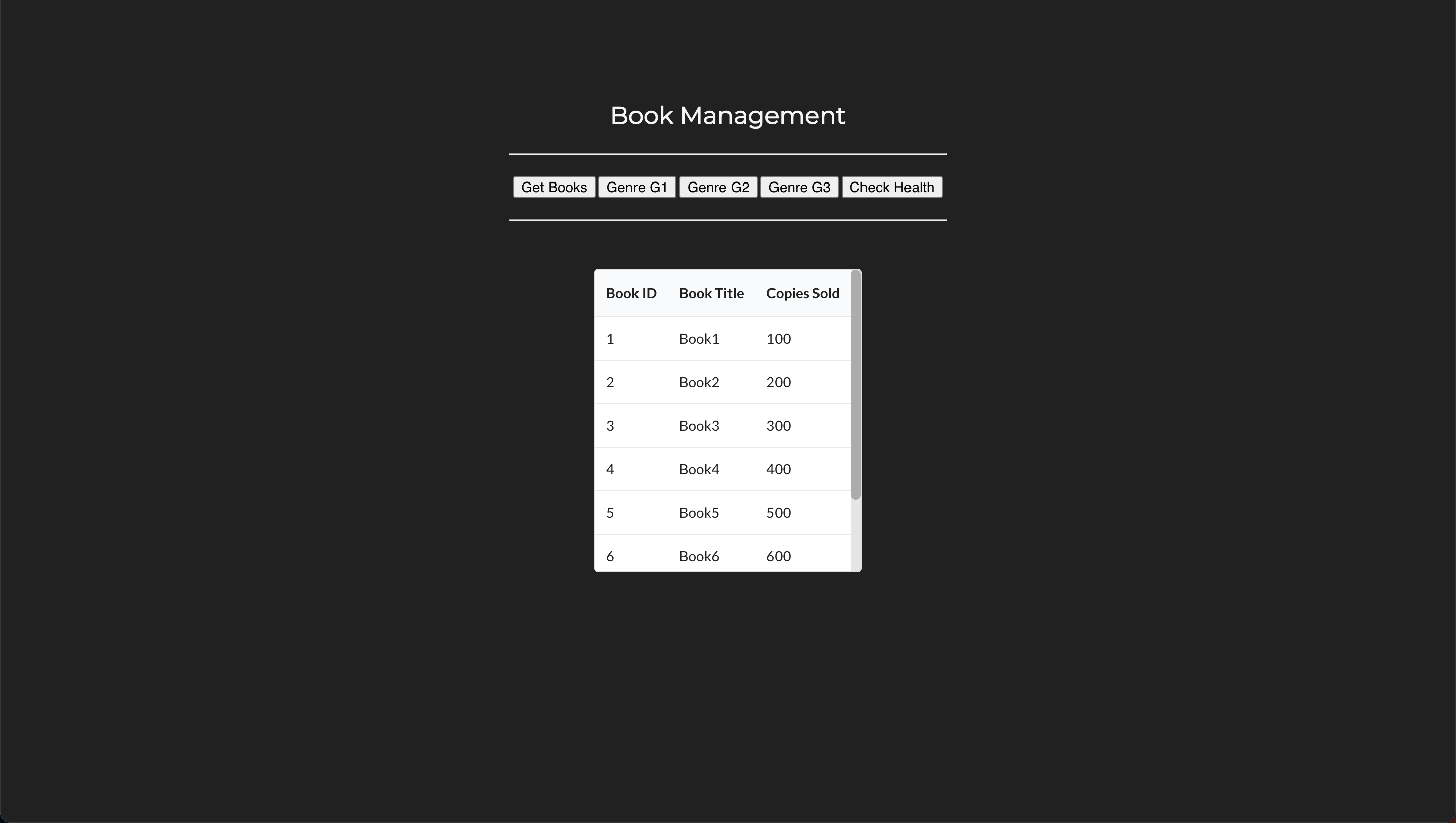
Verify if everything is properly and you can interact with book web frontend service and get the book and genre details.
Step 6: Generate Traffic to Gather Istio Metrics
Let's generate traffic for our book management microservices to gather sufficient Istio metrics that we can visualize in Grafana. We'll use selenium to simulate and generate traffic.
First, create a python script as follows:
Next, create a virtual environment and install selenium using pip3:
# Create virtual environment
virtualenv venv

# Activate virtual environment
source venv/bin/activate

# Install selenium
pip3 install selenium
Now, run the traffic generator:
Now, head to Grafana and check the Istio dashboards to confirm if you can view Istio metrics.
Also, view the service graph in Kiali for the updated microservices. It should looks something like this:
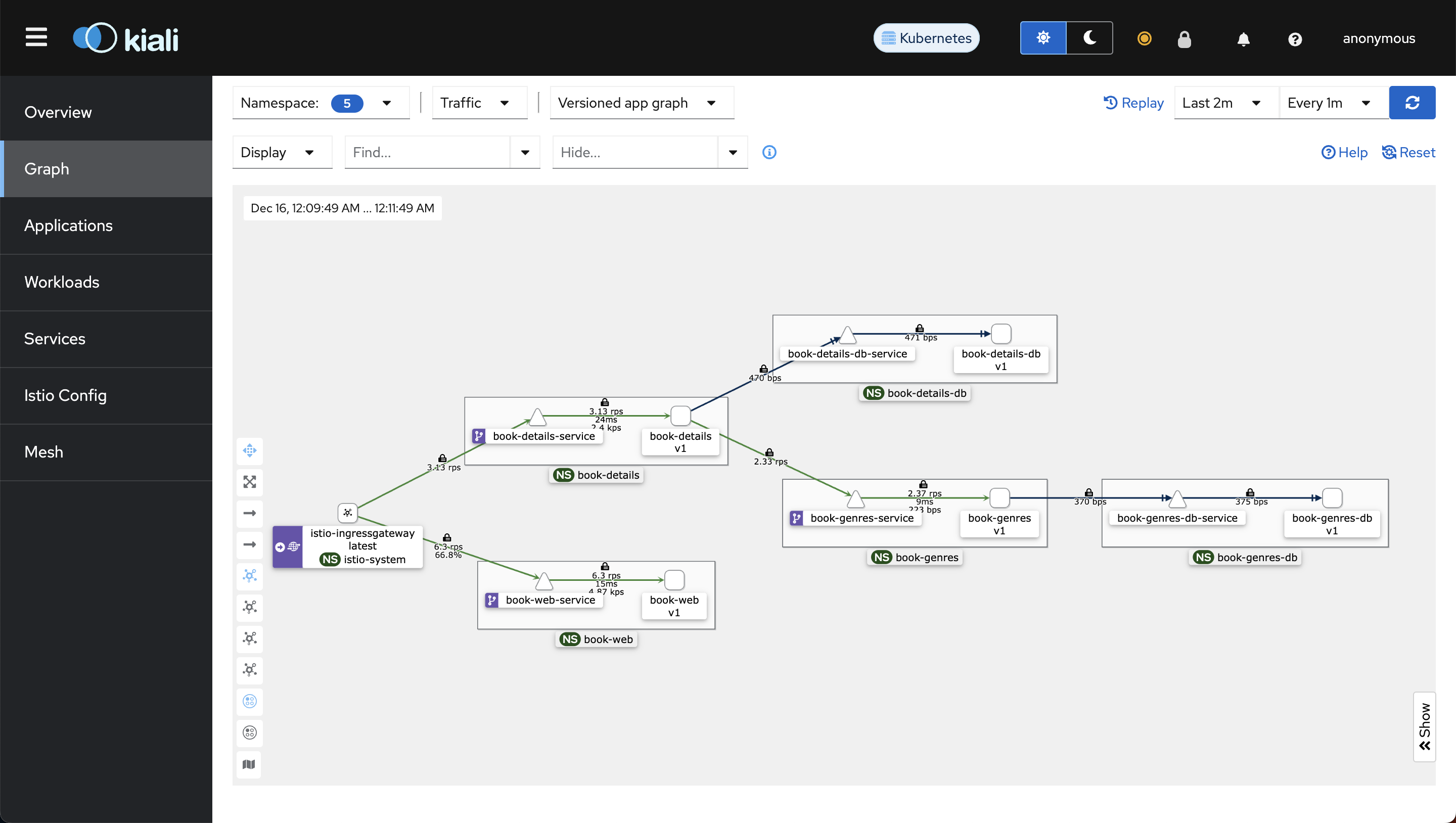
Notice how book-details-service calls book-genres-service and both services independently calls their respective databases.
You won't see book-web-service calling book-details-service in the graph because book-web-service uses the public API to call book-details-service.